Using Targeting-Only Feedback Mode
- Browser
- iPad
Targeting-Only Feedback mode focuses exclusively on target accounts. End users can review Multichannel Cycle Plans (MCCP), submit challenges, and adjust goals without account assignments being surfaced in Feedback. This ensures focused target maintenance during planning cycles.
Configuration
To configure this feature:
- Edit the appropriate Align Settings or Model Align Settings record.
- Select Yes for the targeting_only_feedback__aln field.
- Select Save.
Using Targeting-Only Feedback
When Targeting-Only mode is enabled, only targeting-specific metrics display on the Territory Feedback dashboard.
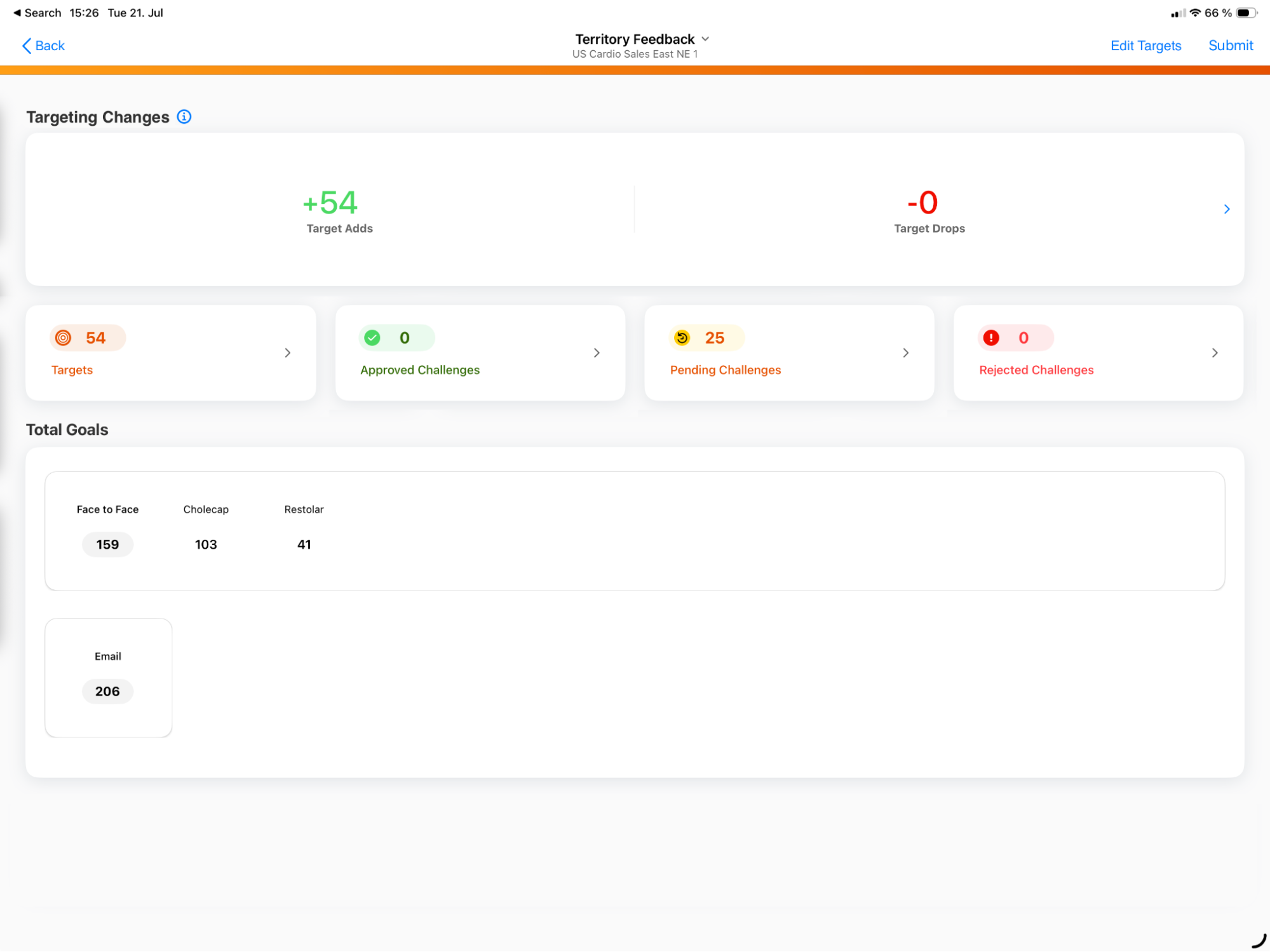
Additionally, the Edit Alignments table in Integrated Territory Feedback is relabeled to Edit Targets.
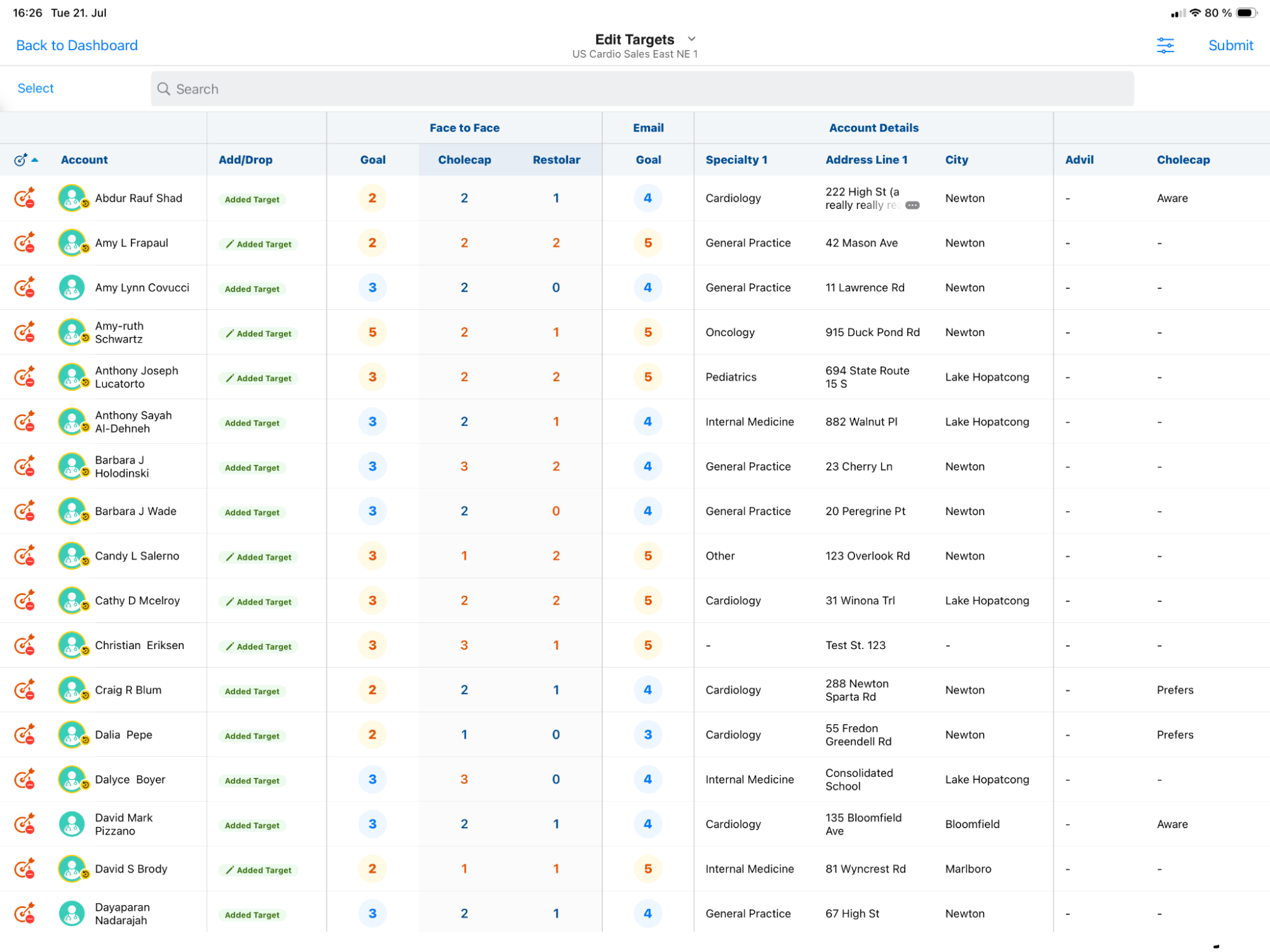
End users can create Remove Target and Edit Goals challenges just as they would when not using Targeting-Only mode. End users cannot create Remove Account or Add Account challenges in Targeting-Only mode.
To create Add Target challenges while in Targeting-Only mode:
- Enter the appropriate search term in the Search bar.
-
Select the Can’t find an account? link. This displays all matching accounts within the user’s territory. Existing targets display with a green icon, while non-target results display with a gray icon.
Searching Outside of a Territory in Territory Feedback is not supported in Targeting-Only mode.
- Select the appropriate non-target account.
- Select the All Actions menu.
- Select Add as Target.
Targeting-Only mode supports Using Location Based Targeting.
Using Targeting-Only Feedback as Managers
When Targeting-Only mode is enabled, the Manager Feedback dashboard also only displays targeting-specific metrics.
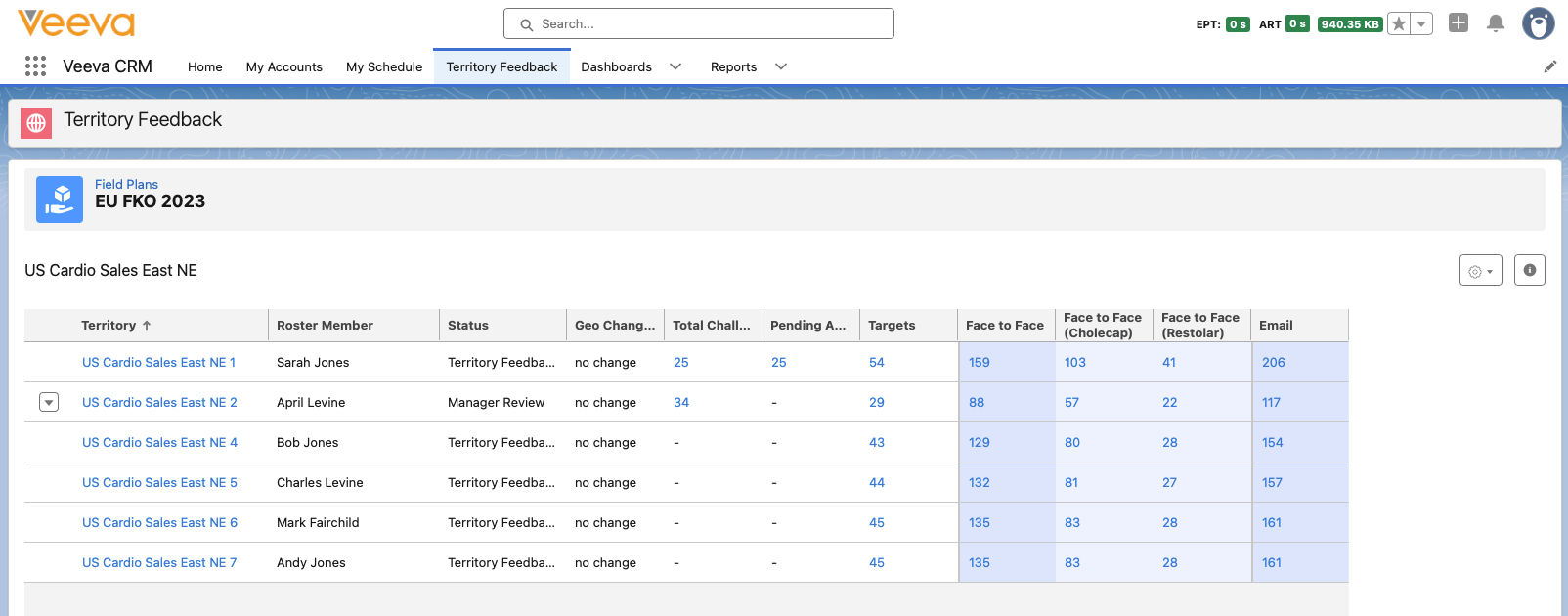
When managers view end users’ territories, only targets are listed. Managers can search for and add accounts as targets to end users’ territories by selecting the Add Targets button.

